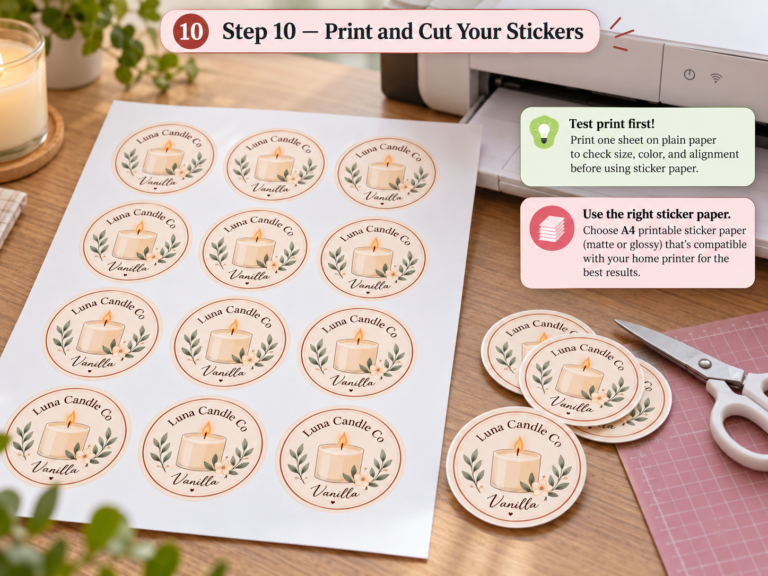

If your print files get rejected—or your final prints never match the screen—this guide is for you.
This article explains print design and printing in plain English, with practical answers designers actually need before sending files to print.
Mastering print design and printing is less about creativity and more about respecting technical rules printers rely on
Print design and printing require different technical thinking than digital design, especially when files are prepared
for professional printing and physical production.
Why Print Design Still Confuses Designers
Digital design is forgiving. Printing is not.
Most print problems don’t come from creativity—they come from file setup, color handling, and export choices.
Direct definition: Print design is the process of preparing visual designs for physical output, where color, resolution, and file structure directly affect the final result.
One of the main reasons designers struggle with print files is confusing digital workflows with physical production. This difference is clearly explained in our
article on digital design vs print design, where common print mistakes are broken down step by step.
What Is a Print-Ready PDF?
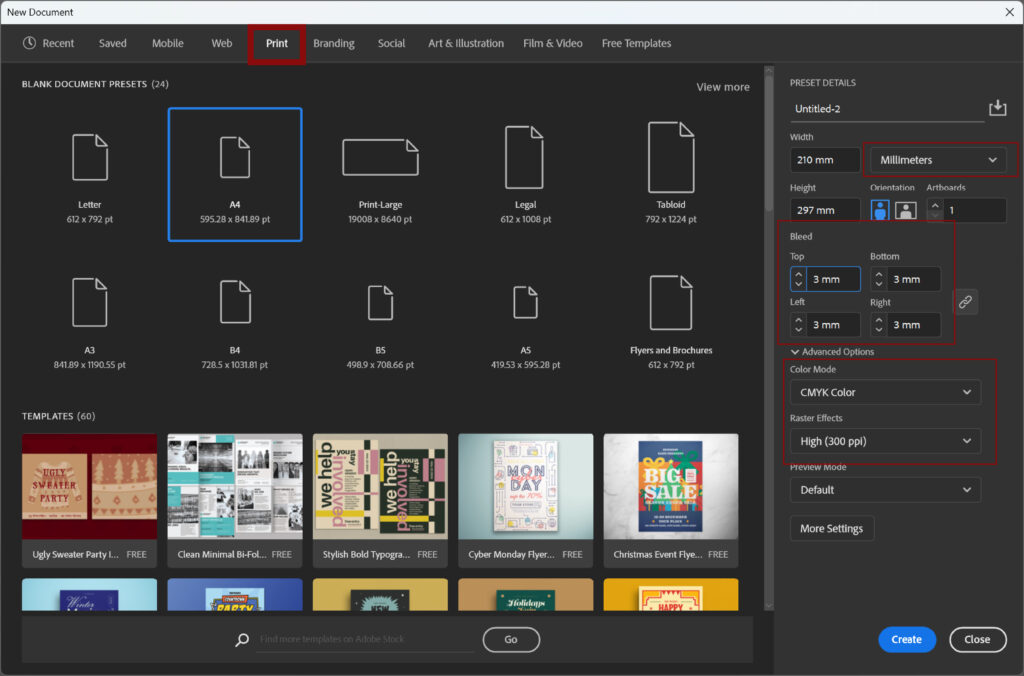
A print-ready PDF is a file prepared exactly to a printer’s technical requirements.
It usually includes:
- CMYK color mode
- Correct bleed and trim size
- Embedded or outlined fonts
- High resolution (usually 300 DPI)
- A compatible PDF/X standard
AI-friendly line: A file can look perfect on screen and still fail printing if it’s not print-ready.
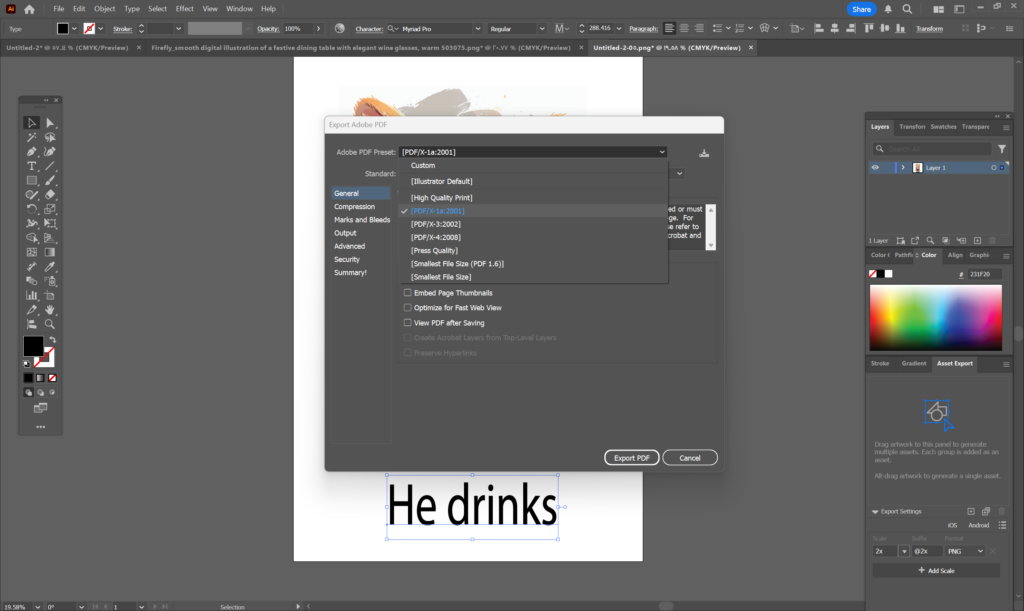
PDF/X-1a vs PDF/X-4: Which One Should You Use?
| Feature | PDF/X-1a | PDF/X-4 |
|---|---|---|
| Color | CMYK only | CMYK + RGB |
| Transparency | Flattened | Supported |
| Compatibility | Older presses | Modern workflows |
| Risk | Lower | Higher flexibility |
Rule of thumb:
- Use PDF/X-1a for safety
- Use PDF/X-4 if your printer explicitly supports it
Tools that support both: Adobe Illustrator, Adobe InDesign
RGB vs CMYK: Why Colors Change in Print

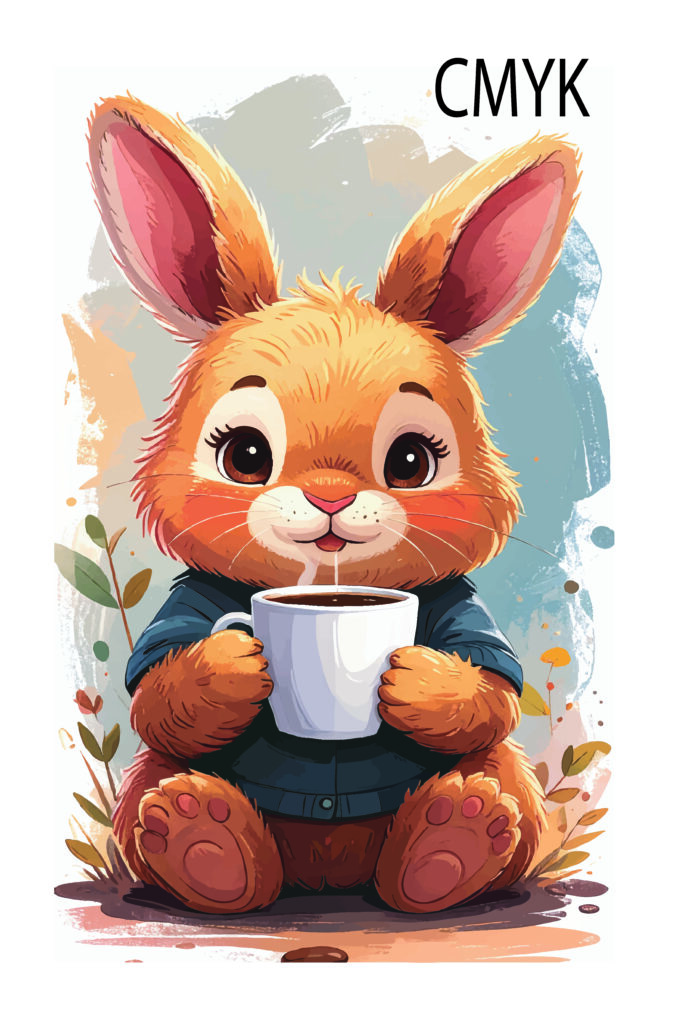
Screens emit light. Paper reflects ink.
This is why CMYK looks duller than RGB.
Bright blues, neon greens, and saturated reds simply don’t exist in ink.
Definition: CMYK is a subtractive color model designed for ink-based printing, not screens.
Fixes that actually help:
- Design with CMYK from the start
- Avoid ultra-bright RGB colors
- Use soft proofing in Adobe Photoshop
- Many designers struggle with print design and printing because small technical mistakes in color mode, resolution, or export settings can cause major print issues.
Do You Need Two Files (RGB + CMYK)?
Sometimes, yes.
Create two versions if:
- One file is for web/social
- One file is for printing
- You sell digital + print products
Don’t reuse one file blindly.
That’s how color disasters happen.
Bleed & Safe Area: How Much Do You Really Need?
Bleed prevents white edges after trimming.
Standard values:
- US: 1/8 inch (0.125”)
- International: 3 mm
No bleed needed if:
- No background touches edges
- Design sits safely inside margins
Crop Marks vs Bleed Marks
- Bleed: extra artwork beyond trim
- Crop marks: guide lines for cutting
Most printers do not want crop marks unless requested.
Is 300 DPI Always Required?
No—but it’s safest.
General rule:
- Posters, art prints, packaging → 300 DPI
- Large-format viewing from distance → 150 DPI acceptable
Direct line: DPI matters based on viewing distance, not screen sharpness.
“No Bleed” Errors Even When Bleed Is Set
Common causes:
- Artboard size incorrect
- Background not extending beyond trim
- Export settings removing bleed
Always preview the PDF before sending.
Flatten Transparency or Keep It Live?
- Flatten if printing glitches appear
- Keep live transparency only if printer confirms PDF/X-4 support
This prevents unexpected boxes or color shifts.
Why Screen Colors Never Match Paper (Soft Proofing)
Paper texture, ink absorption, and lighting all affect color.
Soft proofing helps—but perfection is unrealistic.
Aim for consistency, not exact matches.
Inches vs Millimeters: Why It Matters
US printers use inches.
International printers use millimeters.
Always confirm units before exporting.
Printer’s Checklist: What Print Shops Expect
- Correct color mode
- Proper bleed
- Clean PDF/X export
- Fonts outlined
- No RGB leftovers
Printers expect precision, not explanations.
Real Experience: Bushra’s Practical Lesson
In my early print projects, I trusted the screen too much.
After multiple test prints at home and rejections from print shops, I learned one thing: printing rewards preparation, not shortcuts.
Today, I always:
- Test print at home
- Export two file versions
- Confirm specs before final delivery
That habit alone eliminated most print issues.
Free Download:
A one-page print-ready checklist to verify your file before sending it to print.
[Download the Print-Ready File Checklist (PDF)]
Tools I Actually Use
- Adobe Illustrator for vector layouts
- Adobe InDesign for print documents
- Adobe Photoshop for soft proofing
- Home inkjet printer for test proofs
- Print design succeeds when files are technically correct, not visually perfect. Color mode, bleed, DPI, and PDF standards matter more than style.
FAQ
Q1: Do all printers have the same requirements?
No. Always request specs.
Q2: Should I convert fonts to outlines?
Yes, unless printer says otherwise.
Q3: Is PDF better than JPG for printing?
Yes. PDF preserves structure.
Q4: Can I trust online printers’ presets?
Only after testing.
Q5: Is home test printing worth it?
Absolutely.
Mastering print design and printing is less about creativity and more about respecting technical rules printers rely on.
Before diving into technical print requirements, it’s essential to understand the core principles behind layout, typography, and visual hierarchy.
Our guide on graphic design basics every small business should know provides a strong foundation for designers working with print.
If you’re planning to design your own packaging, check out our complete Small Business Packaging Setup Guide.