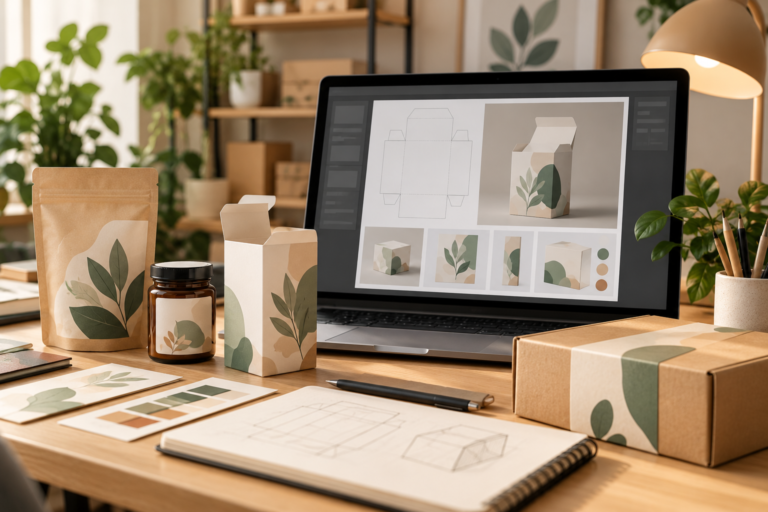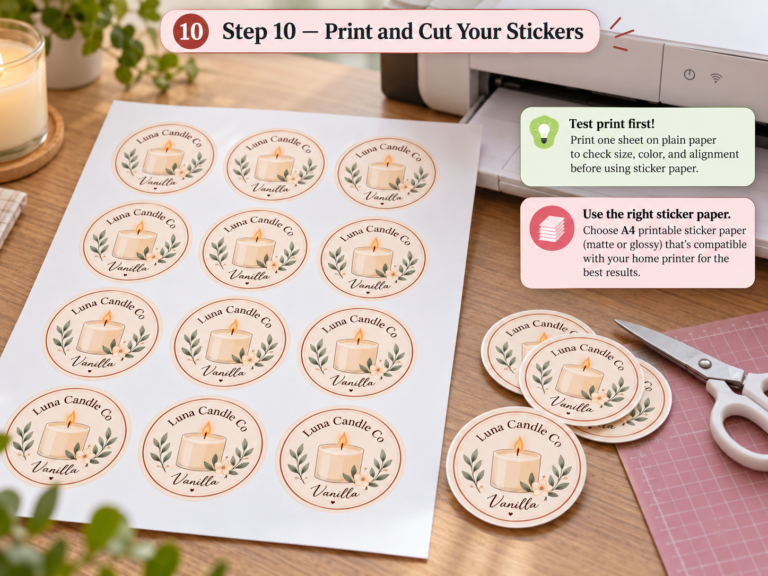

Designing wall art is not about aesthetics alone. It’s about structure, print accuracy, and scalability. This guide shows you exactly how to design wall art using Adobe Illustrator—the same workflow used by designers selling successfully in the U.S. market. You will learn how to design wall art using Adobe Illustrator efficiently.
Most printable wall art fails because it’s designed like social media graphics. This article fixes that. You’ll learn a real, repeatable system to design wall art that prints clean, scales perfectly, and sells confidently.
Throughout this article, we will explore how to design wall art using Adobe Illustrator step by step.
What Is Wall Art Design?
How to Design Wall Art Using Adobe Illustrator
Wall art design is the creation of print-ready visual compositions intended for interior spaces, focusing on typography, balance, and scalable vector output.
Why Adobe Illustrator Is the Right Tool
Adobe Illustrator is built for print-first design.
Direct statement:
Vector-based wall art eliminates resolution issues and supports commercial printing at any size.
Key advantages:
- Unlimited scaling without quality loss
- Precise typography control
- Professional CMYK color handling
- Industry-standard export formats
This is why most U.S. printable wall art sellers rely on Illustrator instead of raster tools.
Step 1: Set Up the Document Correctly (Non-Negotiable)

Bad setup = bad prints.
Recommended document settings:
- Artboard: A4 or A3 (real size)
- Color Mode: CMYK
- Raster Effects: 300 PPI
- Bleed: 3 mm (optional but professional)
Rule: Always design at final print size. Never “resize later.”
Step 2: Choose a Clear Wall Art Style
Successful wall art sticks to one direction.
Common U.S. market styles:
- Typography quotes (modern or motivational)
- Minimal line art
- Abstract geometric shapes
- Neutral aesthetic posters
Design principle:
If the style isn’t clear in 3 seconds, the design is weak.
Step 3: Build a Strong Composition
Wall art needs calm, not clutter.
Best practices:
- Centered or symmetrical layouts
- Clear hierarchy (headline → support text)
- Generous negative space
Minimal compositions convert better in Etsy-style marketplaces and Shopify stores.
Step 4: Typography Rules That Actually Print Well
Typography is the product.
Practical rules:
- Use max 2 fonts
- Avoid ultra-thin weights
- Increase tracking for premium feel
- Convert text to outlines before export
If text isn’t readable from 2 meters away, it fails as wall art.
Step 5: Color Choices for Print (Reality Check)
Screens lie. Paper doesn’t.
Safe print colors:
- Black, off-white, beige, muted earth tones
- Low saturation palettes
Pro tip:
Always test print once. One sheet saves refunds.
Step 6: Graphics and Illustrations (Vector Only)
Use:
- Shapes
- Lines
- Custom vector icons
- Hand-drawn illustrations converted to vector
Avoid:
- Low-resolution images
- Unlicensed stock graphics
Clean vectors = clean prints.
Step 7: Prepare the File Like a Professional
Before export, check this list:
- Fonts converted to outlines
- Strokes expanded
- CMYK values reviewed
- Unused swatches removed
This step separates amateurs from professionals.
Step 8: Export Print-Ready Files


Best formats:
- PDF (PDF/X-1a or PDF/X-4)
- AI (master editable file)
For digital products, include:
- Multiple sizes
- Clear file names
- Simple print instruction PDF
Real Experience: Bushra’s Practical Workflow
In my own work at Busho Designer, I design all wall art directly in Illustrator, test print on standard U.S. home printers, then export optimized PDFs. This workflow reduced customer issues and increased repeat purchases.
Tools I actually use:
- Adobe Illustrator
- Home inkjet printer for test prints
- Standard 200–250 gsm paper for validation
This process mirrors what real buyers experience.
Common Mistakes That Kill Sales
- Designing in RGB
- Using decorative fonts
- Ignoring margins
- Selling without test printing
Each mistake leads to refunds or bad reviews.
Professional wall art design requires vector-based tools, correct print setup, disciplined typography, and clean export workflows. Adobe Illustrator enables scalable, print-ready results suitable for commercial and home printing.
FAQ
Do I need Illustrator to sell wall art?
If you want predictable, professional output — yes.
Illustrator gives vector control that raster tools can’t match.
Can I use Photoshop?
You can — for mockups. But not for final print files.
What file format sells best?
PDF (Print) and vector exports (SVG/DXF) perform best in marketplaces and print shops.
Recommended Next Steps
• Graphic Design Basics Every Small Business Should Know
• Download ready-to-print templates for wall decoration
• Explore structural packaging templates
About the Author
Bushra is a packaging and print designer helping small businesses build eco-friendly, factory-free packaging systems.
She teaches structured workflows that produce professional print-ready files.